Cursor AI Download | AI Code Editor For Windows, MacOS & Linux
Modern software development is moving fast, and writing code is just about syntax or logic. Developers today want tools that can think with them and help them build faster without breaking focus. Traditional code editors are powerful, but they still require constant switching between tabs, documentation, and external AI tools to solve errors or generate code. This breaks workflow and slows productivity.
To solve this gap, Cursor AI comes into play. It is an AI code editor built to work directly inside your coding environment. It combines the familiarity of a modern Integrated Development Environment with advanced artificial intelligence that understands your codebase and intent. Whether you are a beginner learning to code or a professional developer working on large projects. Cursor AI helps you write, edit, debug, and refactor code more efficiently, all in one place.
What Is the Use of Cursor AI?
The main use of Cursor AI is to enhance productivity by integrating artificial intelligence directly into the coding workflow. It helps devs to generate code and do other coding tasks in their projects with simple commands. Using the Cursor also removes the need for external tools and helps to maintain your focus while working. One of the most valuable uses of Cursor AI is its ability to understand the full codebase.
Unlike other code completion tools, it analyzes the project structure and context before making suggestions. Using this tool also gives accurate outputs, cleaner code, and fewer errors. Many of the senior developers use it as an assistant to optimize performance and maintain consistency across large projects. The juniors can use it to explain code line by line, understand complex functions, or follow best coding practices.
How Cursor AI Works
It is an intelligent coding assistant that is trained on thousands of coding patterns across multiple programming languages. It can read your code in real time and detect syntax errors, logical mistakes, or runtime bugs instantly. Instead of just highlighting errors, it proposes the exact code changes to resolve them. Cursor can understand your coding style and predict functions or entire code blocks while you type.
Example: If you forget closing brackets or put a semicolon at the end. The Cursor will not only point out that error but also auto-correct it and even provide suggestions to improve your logic.
How to use Cursor AI: Step-By-Step Guide
Using the Cursor for the first time is difficult for many users, and they also struggle to find a credible guide to its various features. In this guide, you will know how to use it step by step, even if you are a beginner.
Step 1: How Ask Cursor Questions Using the Chat Feature
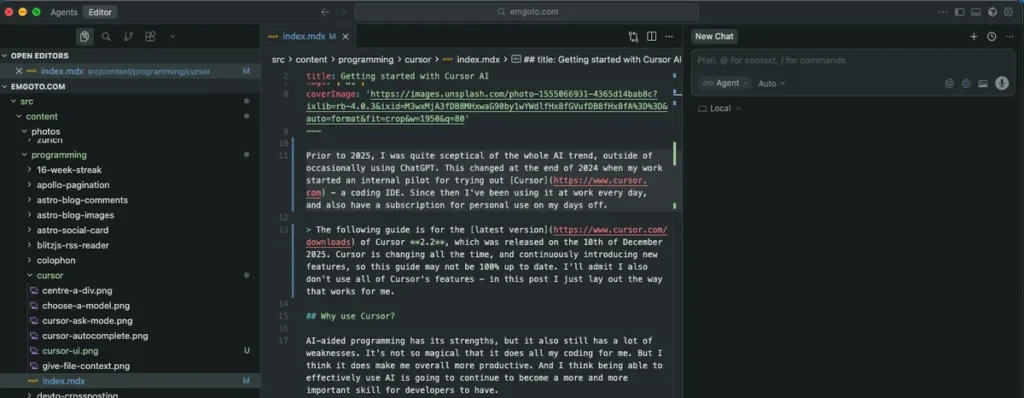
After installing Curator on your system, open your software development tool and install the Cursor extension there. Now, create a new project or open an existing one, then press CTRL+K, or open the extension directly from the menu bar. The Chat section will appear on your screen, and you can start chatting with Cursor, which is connected with your project. You can ask it for error fixes or get suggestions by just putting in prompts.
Step 2: How choose the Right AI Model in Cursor
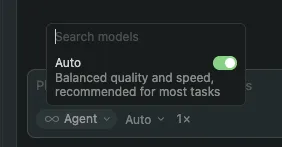
There are multiple models available there for different tasks. Using lightweight models will help you write fast code and be cost-effective. Advanced models handle complex logic better and are suitable for large files. The best two models for almost all tasks in Cursor are GPT-4 for complex projects and GPT-4-turbo for efficient coding.
Step 3: Understanding Cursor Modes: Ask Mode vs Agent Mode
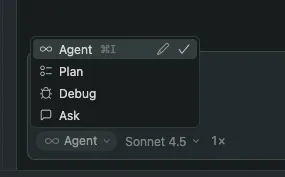
It offers two main modes for working with code. Ask Mode acts as an AI assistant that provides suggestions and guidance without making any changes to your files. While the Agent Mode can edit multiple files in your project automatically and apply changes directly. A good workflow is to start with Ask Mode to understand the code or plan modifications, then switch to Agent Mode to safely implement the changes.
Step 4: How Cursor AI Autocomplete Works While Coding
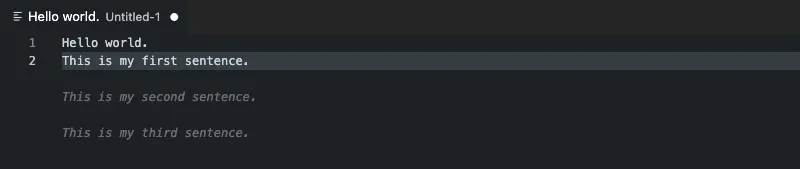
Cursor suggests code as you type by analyzing your file and project context. Just start typing, and it will show completions for functions, variables, or lines of code. Press Tab or Enter to accept suggestions, which helps you code faster and avoid mistakes. This feature also allows beginners learn coding patterns by showing real-time examples. Over time, it can improve your workflow and make coding more efficient.
How to Use Cursor AI in VSCode, Visual Studio, and Android Studio
There are many beginners out there who don’t know how to use the Cursor in different development tools. Here is a method for using it on some popular platforms.
VS Code:
- Install the Cursor AI extension from the VS Code Marketplace.
- Open any project, and as you type, AI suggestions appear inline.
- Use keyboard shortcuts to accept, reject, or modify suggestions.
- Works with Python, JavaScript, Java, C++, and more.

Visual Studio:
- Add the Cursor AI plugin via the Extensions Manager.
- It is compatible with C#, .NET, and other supported languages.
- It will help you detect logic errors in larger projects before they are compiled.
Android Studio:
- Install the Cursor AI plugin through the IDE Plugin Marketplace.
- It provides code completions for Kotlin and Java, error fixes, and boilerplate generation.
- Works with Python, JavaScript, Java, C++, and more.
Exclusive Features of Cursor AI
Cursor comes with many features that simplify coding while improving speed and accuracy. Below are the key features that make it a powerful choice for modern developers.
AI Code Generation:
One of the most important features of this tool is its ability to generate code from neutral language prompts. You can describe what you want to build. And it will instantly create relevant functions and logic inside the editor. AI code is especially useful for repetitive tasks and quick prototyping. It also allows developers to focus more on core logic and creativity.
Context-Aware Code Understanding:
The tool does not work on a single file in isolation. It understands the entire codebase, including file structure, dependencies, and existing logic. Because of this context awareness, its suggestions are more accurate and consistent with your project. Context-Aware feature also help prevent common mistakes and ensures that the generated code fits naturally into the existing workflow.
Intelligent Debugging and Error Fixing:
Debugging is one of the most time taking parts of development, and Cursor significantly simplifies this process. It studies error messages to discover the root cause of bugs and then applies the correct fix directly in your code. You can ask the AI to explain why an error occurred and how to resolve it. Using it makes troubleshooting faster and less frustrating.
Natural Language Editing:
With the help of this tool, you can edit code with simple language instructions. Instead of manually modifying multiple lines, you can tell Cursor what changes you want, such as adding validation, changing logic, or improving efficiency. The AI applies these changes accurately while preserving the original structure of your code.
Integrated Chat for Code Assistance:
The tool includes an integrated chat system that allows developers to interact with AI without leaving the editor. You can ask questions, request explanations, or get suggestions related to your current file or entire project. Chat Assistant eliminates constant context switching and helps maintain a smooth and uninterrupted workflow.
Cursor AI Pricing Plans Explained
Cursor offers flexible pricing plans designed to suit users from beginners to professional developers. The tool follows a freemium model where you can use it for free and upgrade later if you need more advanced features. Below is a detailed breakdown of all pricing plans to help you understand what each option provides.
| Plan Name | Price | Best For | Key Features |
| Hobby | Free | Beginners & casual users | No credit card requiredLimited Agent requestsLimited Tab completions |
| Pro | $20/Month | Individual developers | Extended Agent limitsUnlimited Tab completionsBackground AgentsMaximum context windows |
| Pro+ | $60/Month | Power users | Everything in Pro3× usage on OpenAI, Claude, and Gemini models |
| Ultra | $200/Month | Heavy AI users | Everything in Pro20× usage on OpenAI, Claude, and Gemini modelsPriority access to new features |
| Teams | $40/Month | Small to mid-size teams | Shared chats, commands, and rulesCentralized team billingUsage analytics and reportingOrg-wide privacy controlsRole-based access controlSAML / OIDC SSO |
| Enterprise | Custom Pricing | Large organizations | Everything in TeamsPooled usageInvoice and PO billingSCIM seat managementAI code tracking API and audit logsGranular admin and model controlsPriority support and account management |
Cursor AI Download Process for Windows / Mac / Linux
Downloading the Cursor is very simple, and it includes all official versions for all Computer operating systems. You can download the installers for all these OS from our website and follow the steps below to install them.
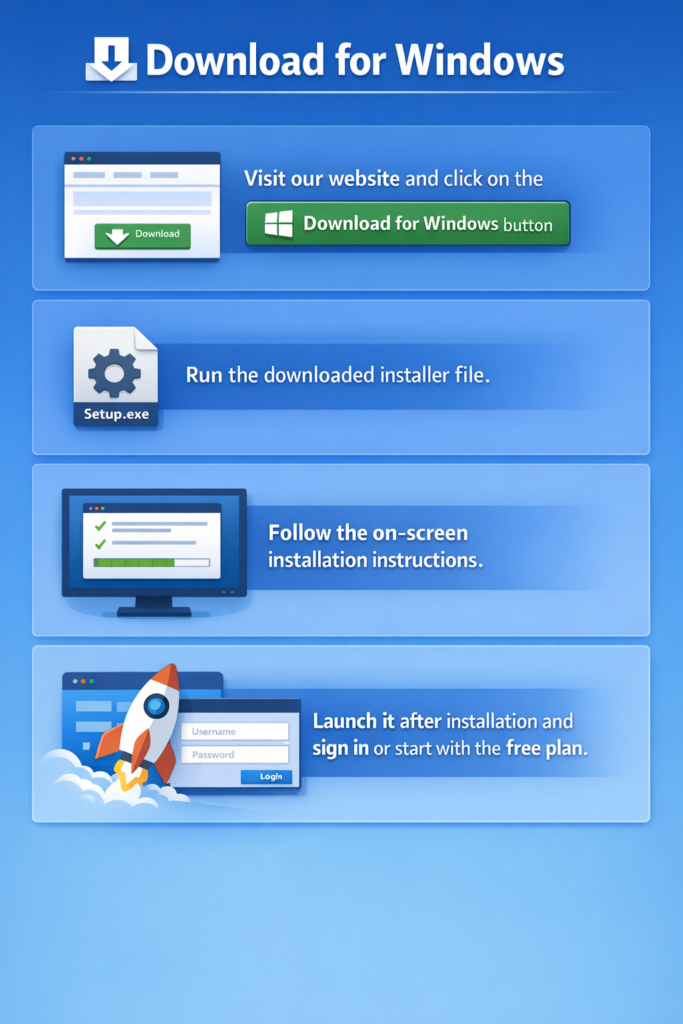
Download for Windows
- Visit our website and click on the Download for Windows button.
- Run the downloaded installer file.
- Follow the on-screen installation instructions.
- Launch it after installation and sign in or start with the free plan
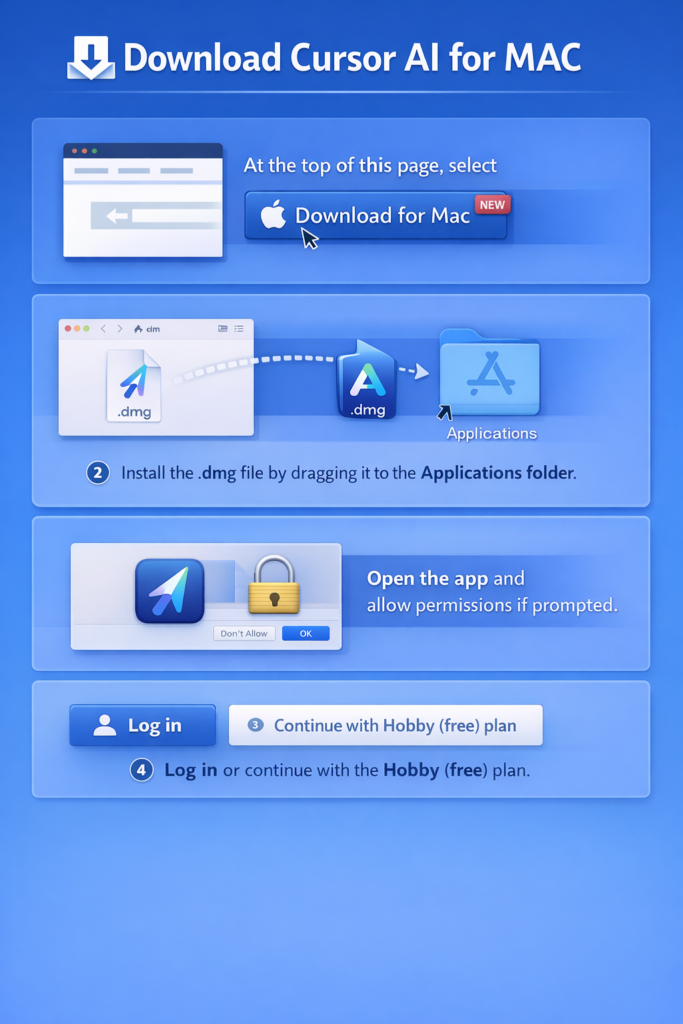
Download Cursor AI for MAC
- At the top of this page, select Download for Mac.
- Install the .dmg file by dragging it to the Applications folder.
- Open the app and allow permissions if prompted.
- Log in or continue with the Hobby (free) plan.
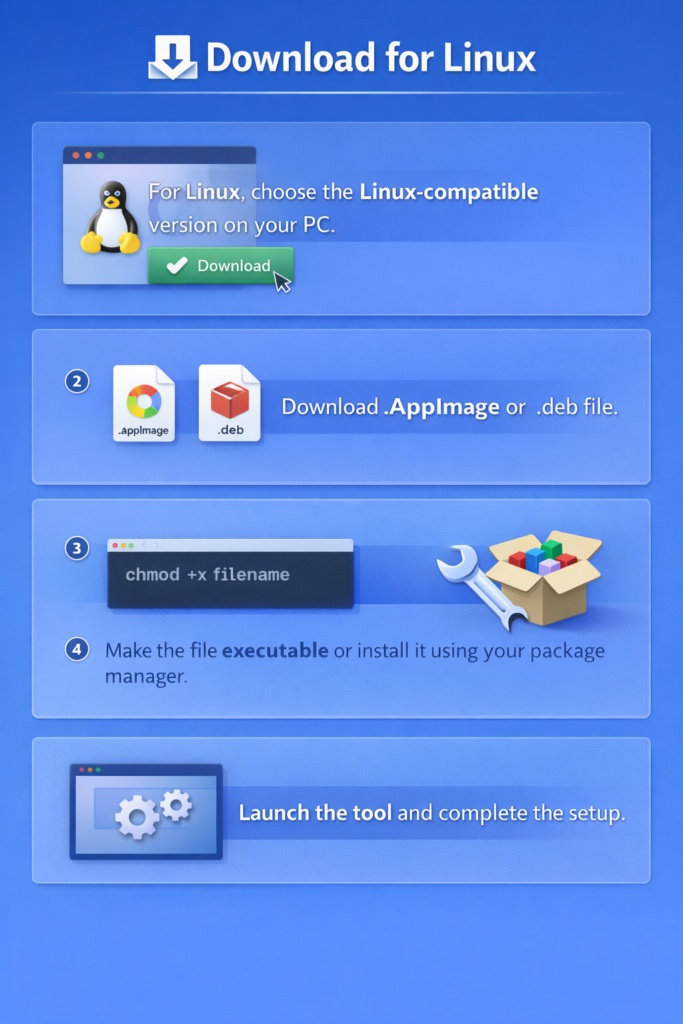
Download for Linux
- For Linux, choose the Linux-compatible version on your PC.
- Download .AppImage or .deb file.
- Make the file executable or install it using your package manager.
- Launch the tool and complete the setup.
Cursor AI Login and Account Setup
You need a quick login to start using this tool. The login process is simple and only takes a few minutes.
- Open the Cursor on your device.
- Click on the Sign In or Login option.
- Choose your preferred login method (Google or GitHub)
- Complete the authentication process
- You will be logged into your account instantly.
Cursor AI Coding Halt: What It Is and Why It Happens
A coding halt means the AI stops responding or generating code for a short time. That usually happens because of usage limits or temporary system restrictions. It is more common on the free plan and does not affect your actual code files.
Common reasons for coding halt include:
How to fix it:
Note: These issues are usually temporary and can be easily avoided with proper use or a plan upgrade.
When I don’t use the Cursor (at work)
While Cursor AI is a powerful tool, it isn’t always ideal for every coding scenario. AI-assisted programming learns from publicly available code on the internet, making it suited for general tasks. For example, adding a React component to a blog or generating common functions is straightforward and efficient. At work, projects often use custom utilities and unique coding standards that AI doesn’t fully understand.
Even though Cursor may not handle highly specific code perfectly, it remains a helpful assistant for speeding up routine tasks and exploring new coding patterns. Knowing when to rely on AI and when to trust your own experience is key to using it effectively.
Pros and Cons of Cursor AI
Before using any AI coding tool, it is important to understand its strengths and limitations. Below is a clear and balanced overview of the pros and cons to help you decide whether it fits your needs.
PROS
CONS
Frequently Asked Question (faqs)
Final Words
Cursor AI enhances coding efficiency with intelligent suggestions for all developers. It supports multiple languages, helping beginners and experts code confidently. The free plan offers basic features, suitable for learning new skills. Paid plans unlock advanced tools, ideal for professional development projects. Its AI-powered debugging and explanation features save time significantly and reduce coding errors.